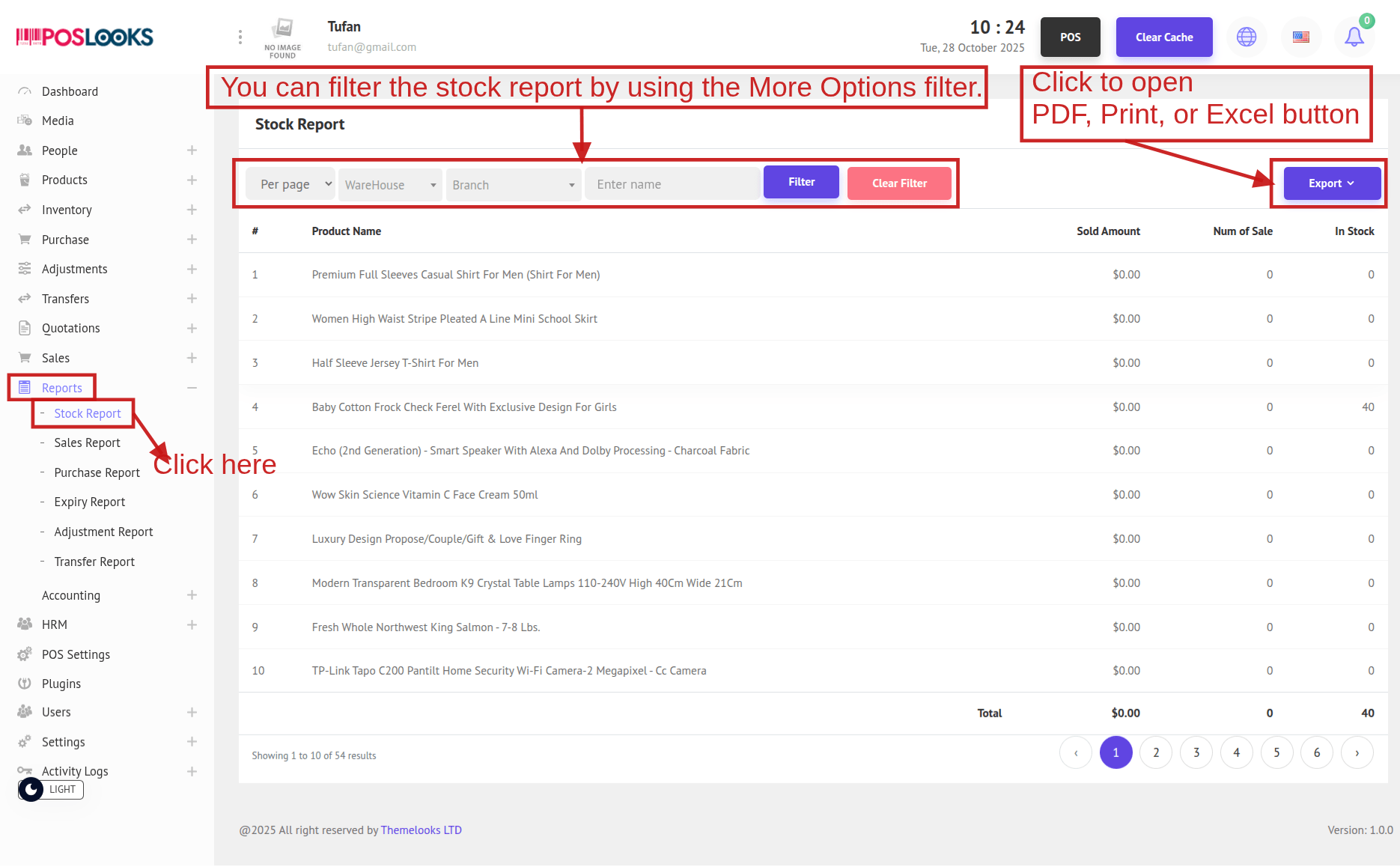
1. To view the Stock Report, go to Reports -> Stock Report from the menu bar. You will be redirected to the Stock Report page, where all stock data is displayed.
Click the Export button to open a drop-down with Print, PDF, and Excel options. Select any of these to download the stock report in your preferred format.
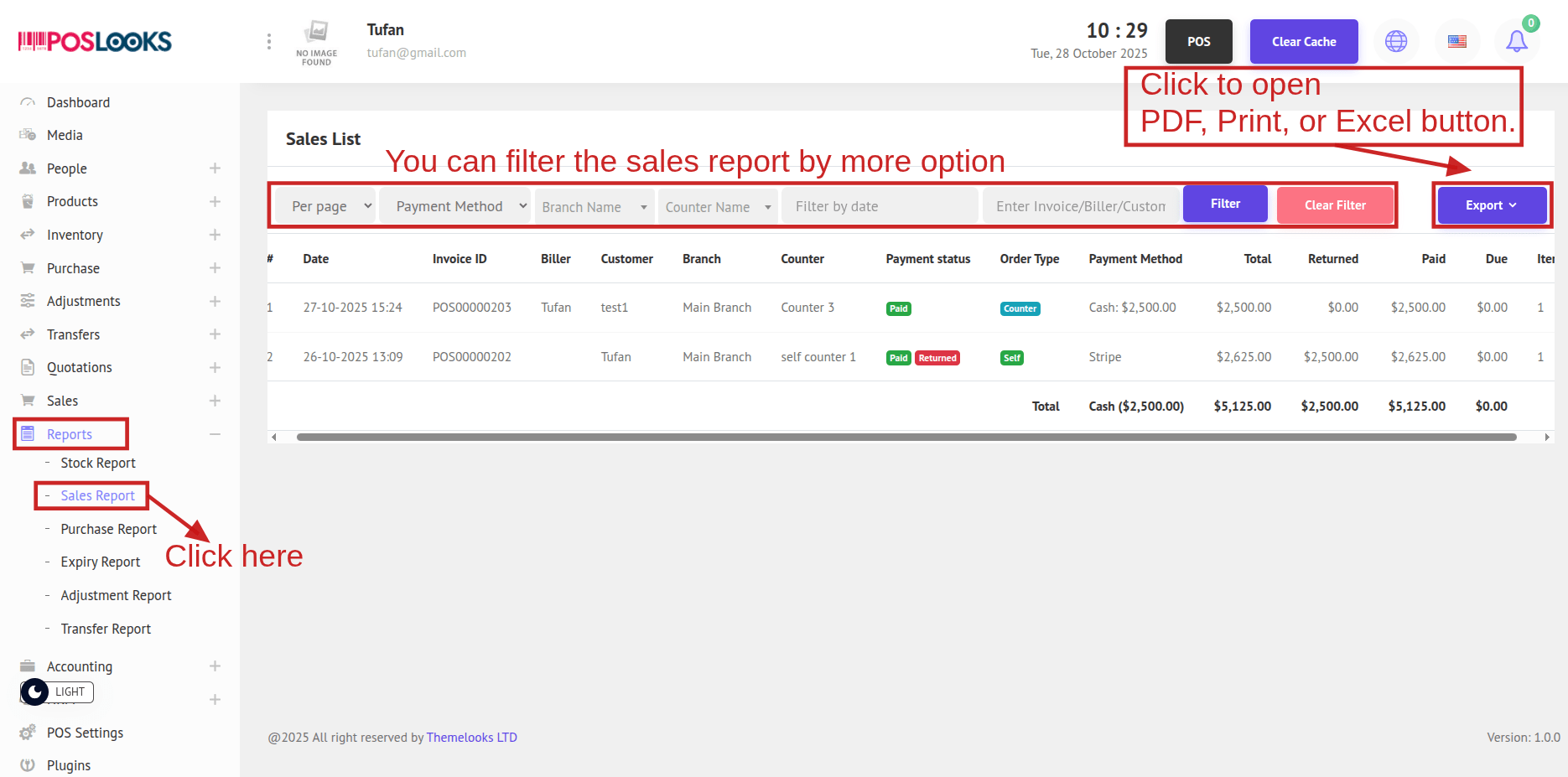
2. To view the Sales Report, go to Reports -> Sales Report from the menu bar. You’ll be redirected to the Sales Report page, where all sales data is displayed. Click the Export button to open a drop-down with Print, PDF, and Excel options, and select your preferred format to download the report.
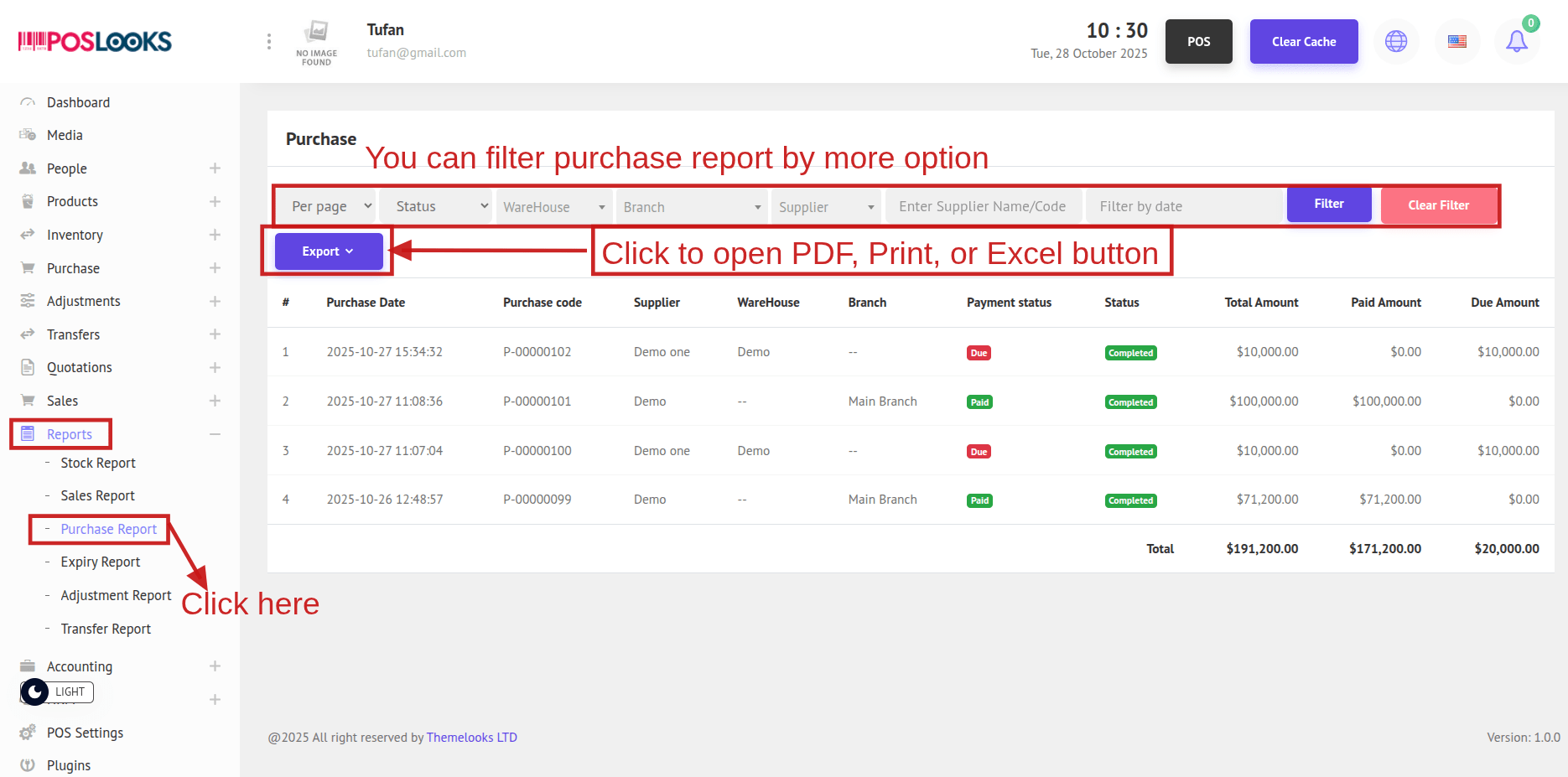
3. Navigate to Reports -> Purchase Report to view all purchase data. Use Export to choose Print, PDF, or Excel and download the report.
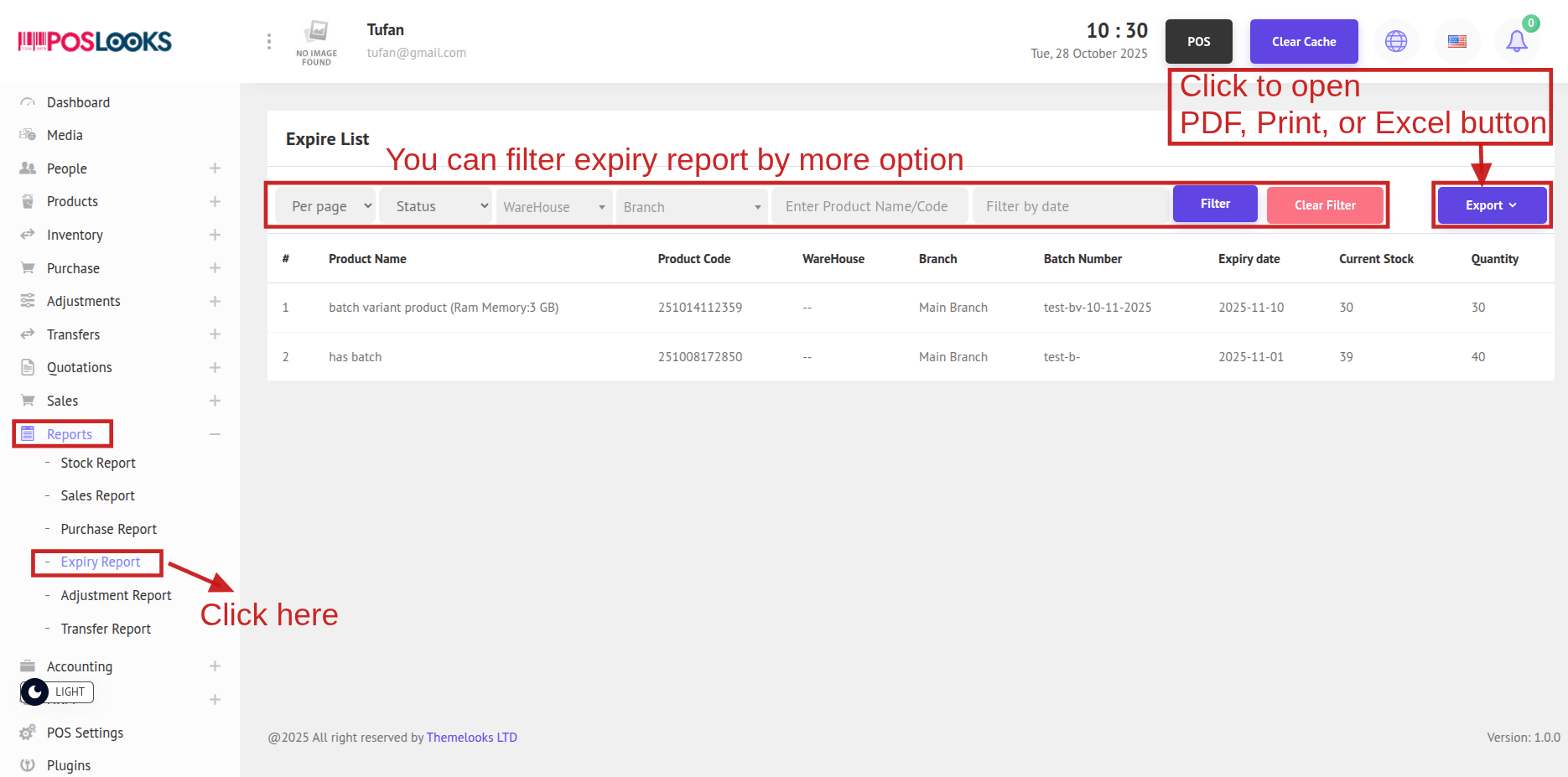
4. Navigate to Reports -> Expiry Report from the menu bar. You’ll be redirected to the Expiry Report page, where all expiry data is displayed. Click the Export button to open a drop-down with Print, PDF, and Excel options, then select your preferred format to download the report.
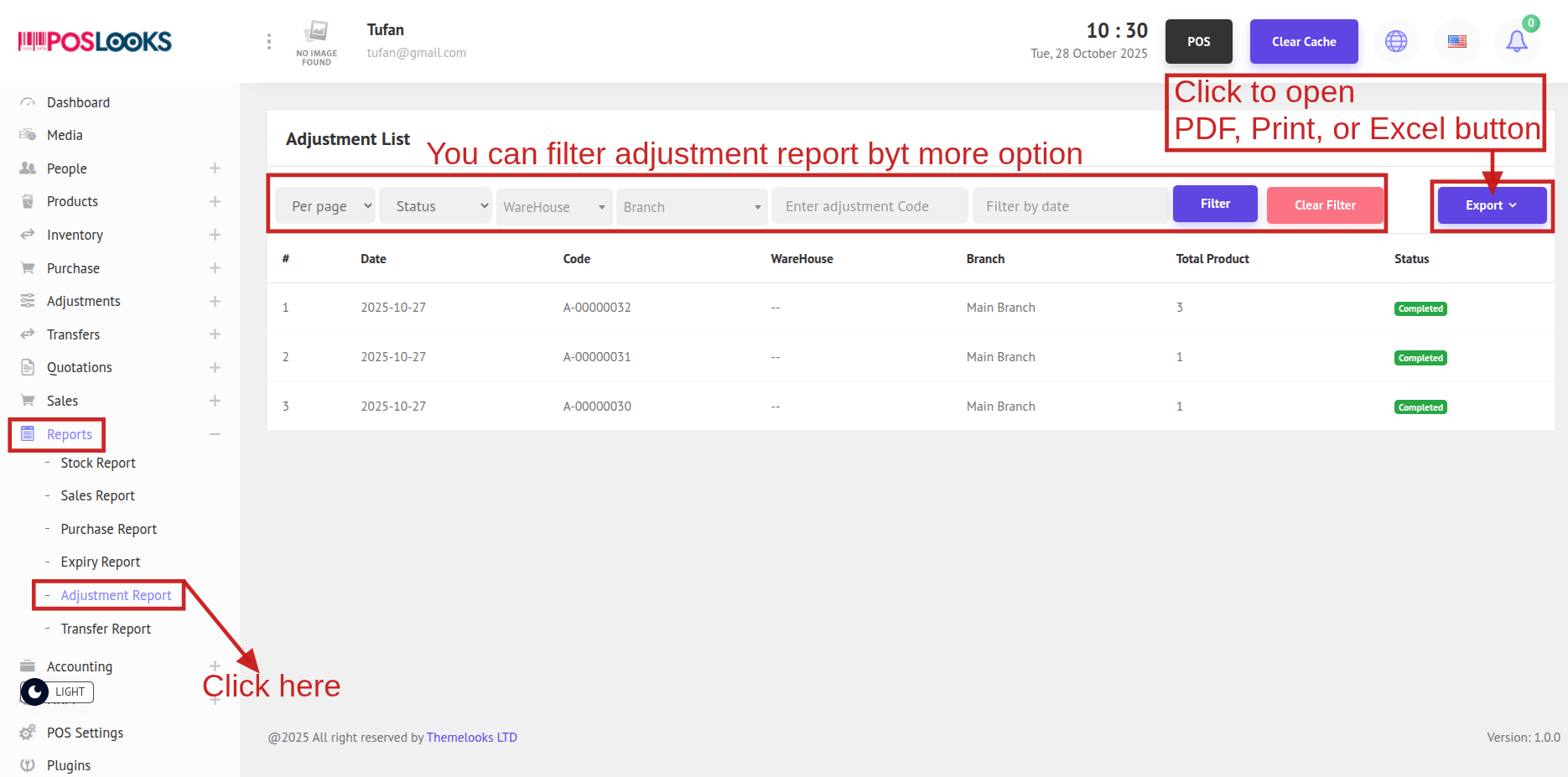
5. To view the Adjustment Report, go to Reports > Adjustment Report from the menu bar. You’ll be redirected to the Adjustment Report page, where all adjustment data is displayed. Click the Export button to open a drop-down with Print, PDF, and Excel options, then select your preferred format to download the report.
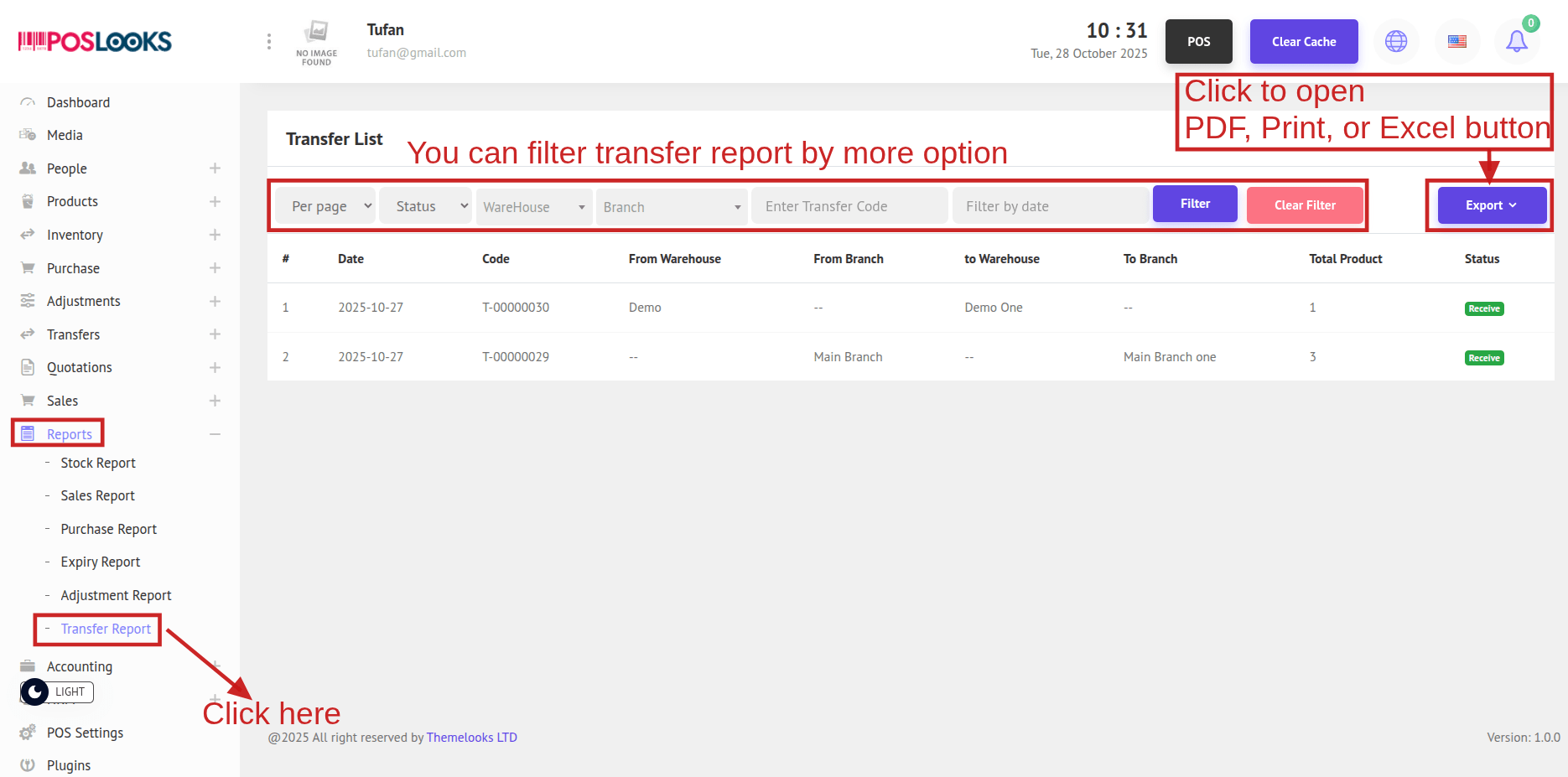
6. Go to Reports > Transfer Report to view all transfer data. Use Export to choose Print, PDF, or Excel and download the report.