1. To add a new adjustment, navigate to Adjustment -> Add Adjustment from the menu bar. This will redirect you to the Add Adjustment page where you can create a new adjustment record.
First, select the location (Warehouse or Branch). After selecting Warehouse, the warehouse selection option will appear. If you select Branch, the branch selection option will appear. Then, you can search for the product.
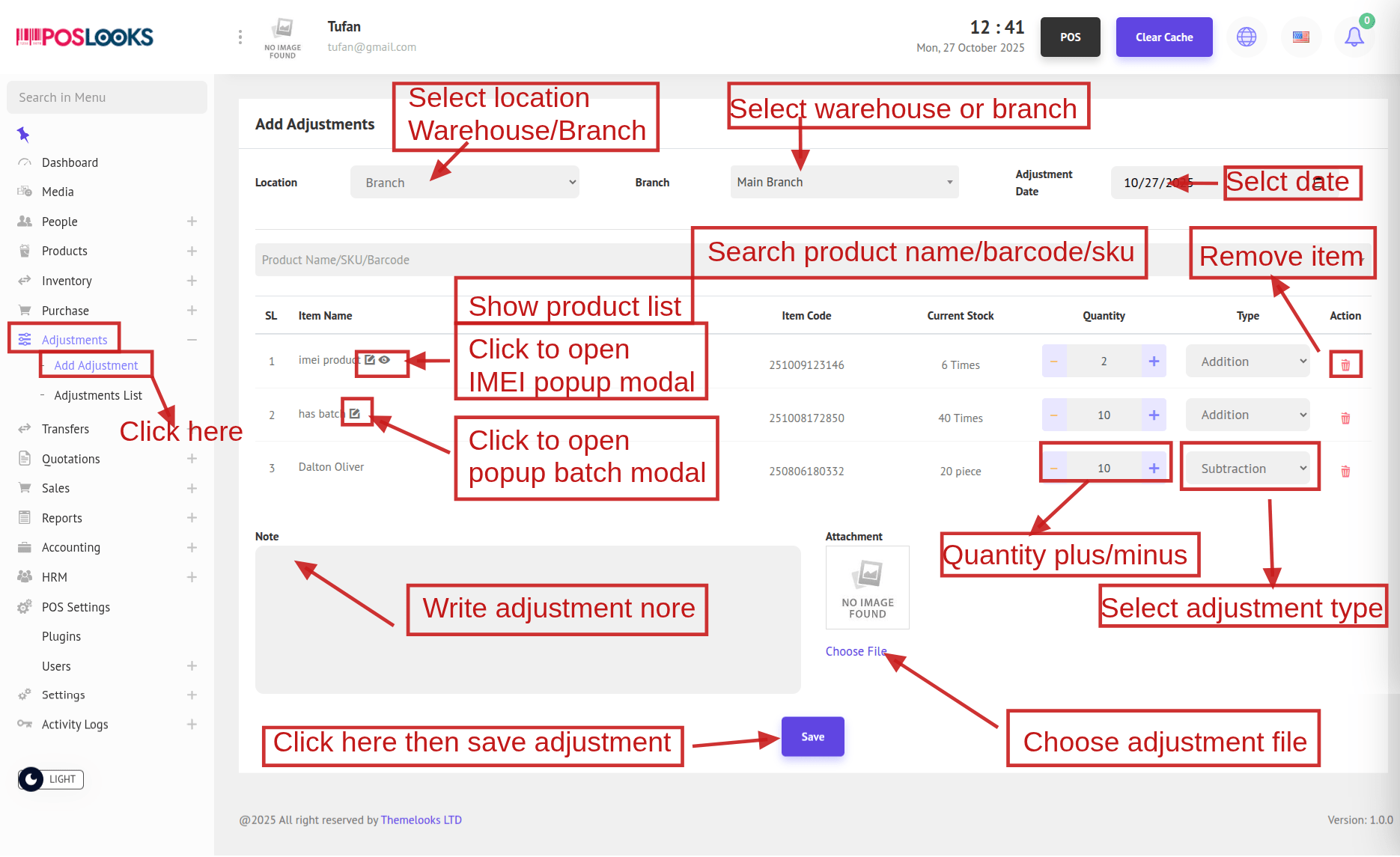
If the product has an IMEI or Serial Number and the adjustment type is Addition, a popup modal will appear. Add the IMEI number and click Add. You can also edit the IMEI by clicking the Edit icon, or view it by clicking the View icon to open a popup modal showing the IMEI or Serial Number details.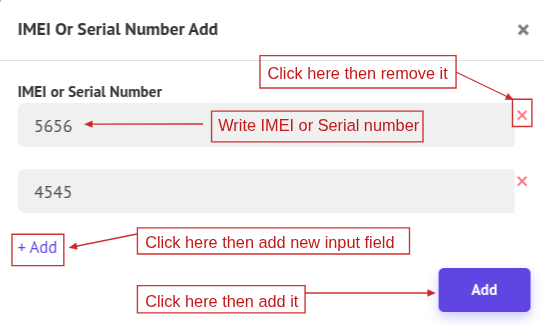
View IMEI or Serial Number Modal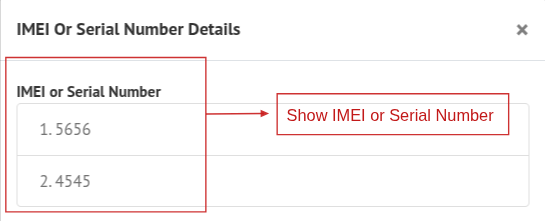
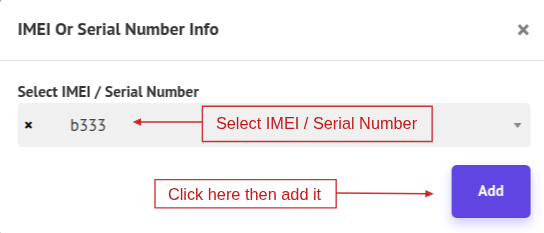
If your product has an IMEI or Serial Number and the adjustment type is Subtraction, a popup modal will appear with an option to select the IMEI or Serial Number. Click Add to include the selected IMEI. You can also edit it by clicking the Edit icon, which will open a popup modal where you can change the IMEI or Serial Number, then click Add to save the changes.
If your product has a Batch, a popup modal will appear where you can select the batch and click Add to include it. You can also edit the batch by clicking the Edit icon, changing the selection, and then clicking Add again to save the changes.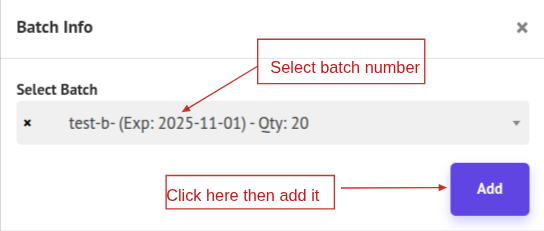
2. To see the Adjustment List, go to Adjustment -> Adjustment List from the menu bar. You will be able to view all adjustments on the Adjustment List page.
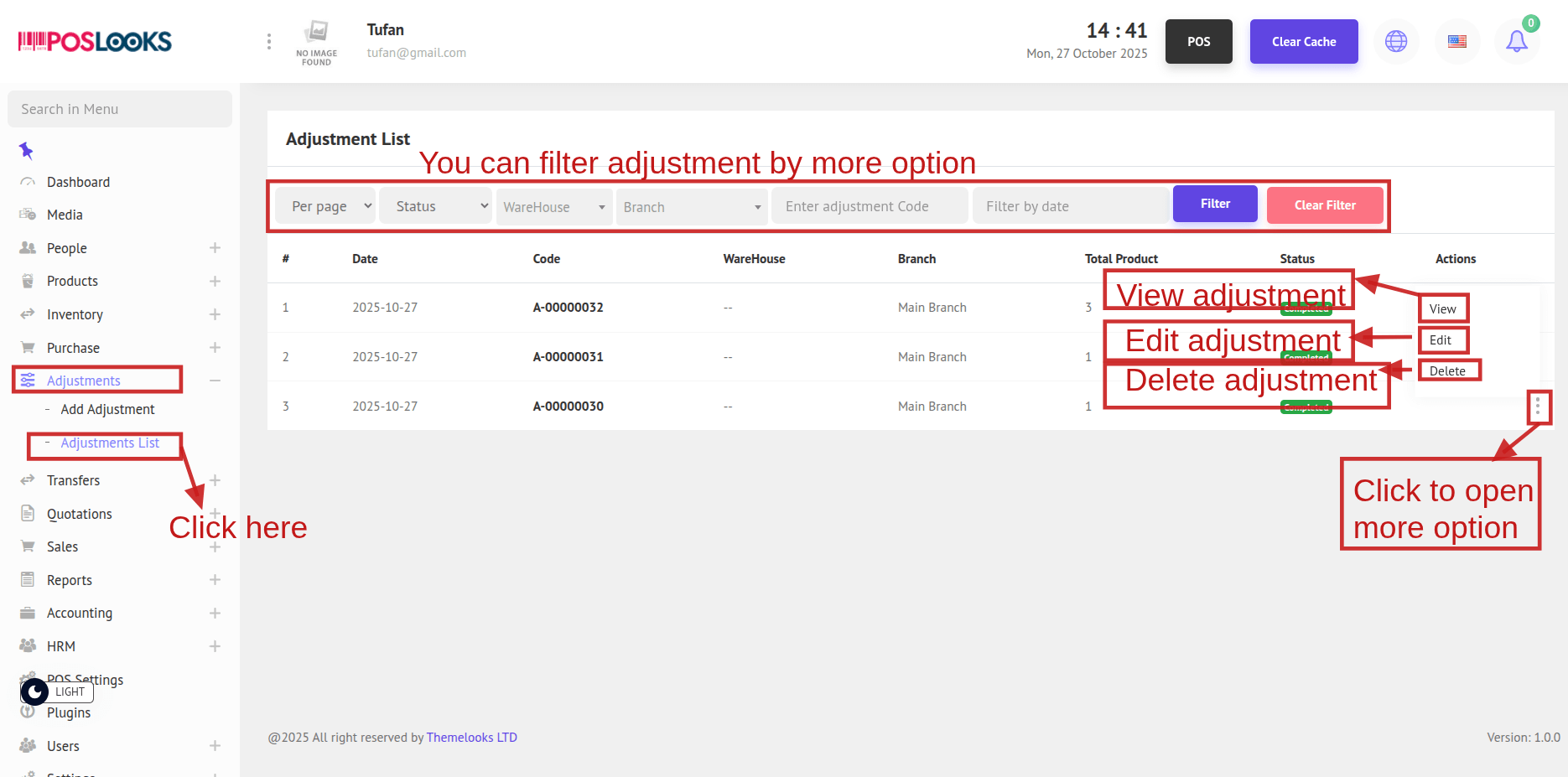
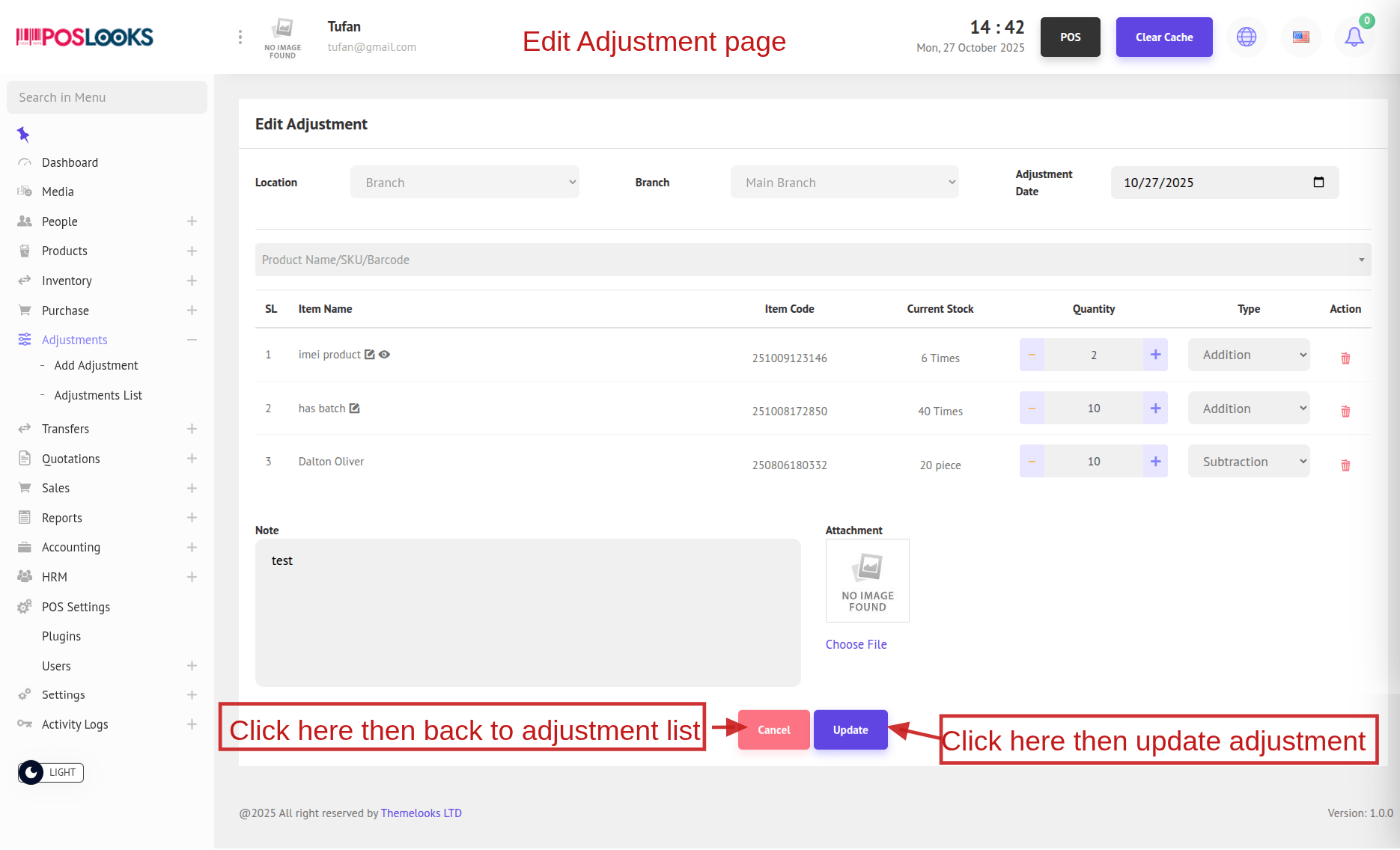
To edit an adjustment, click the Edit button. You will be redirected to the Edit Adjustment page, where you can make changes to the data and click Update to save. If no changes are needed, click Back to Adjustment List. You can also delete an adjustment by clicking the Delete button.
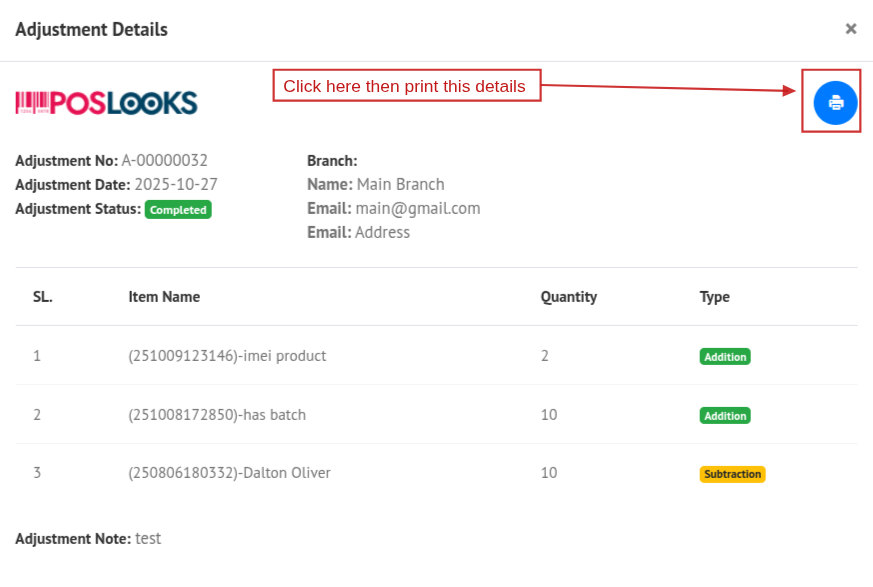
You can also view the details of an adjustment by clicking the View button. A popup modal will appear showing the adjustment details. You can print this page by clicking the Print icon, which will open the print view.