
1. Let's first learn about managing Users. Go to Users -> User. You’ll be redirected to the User page.
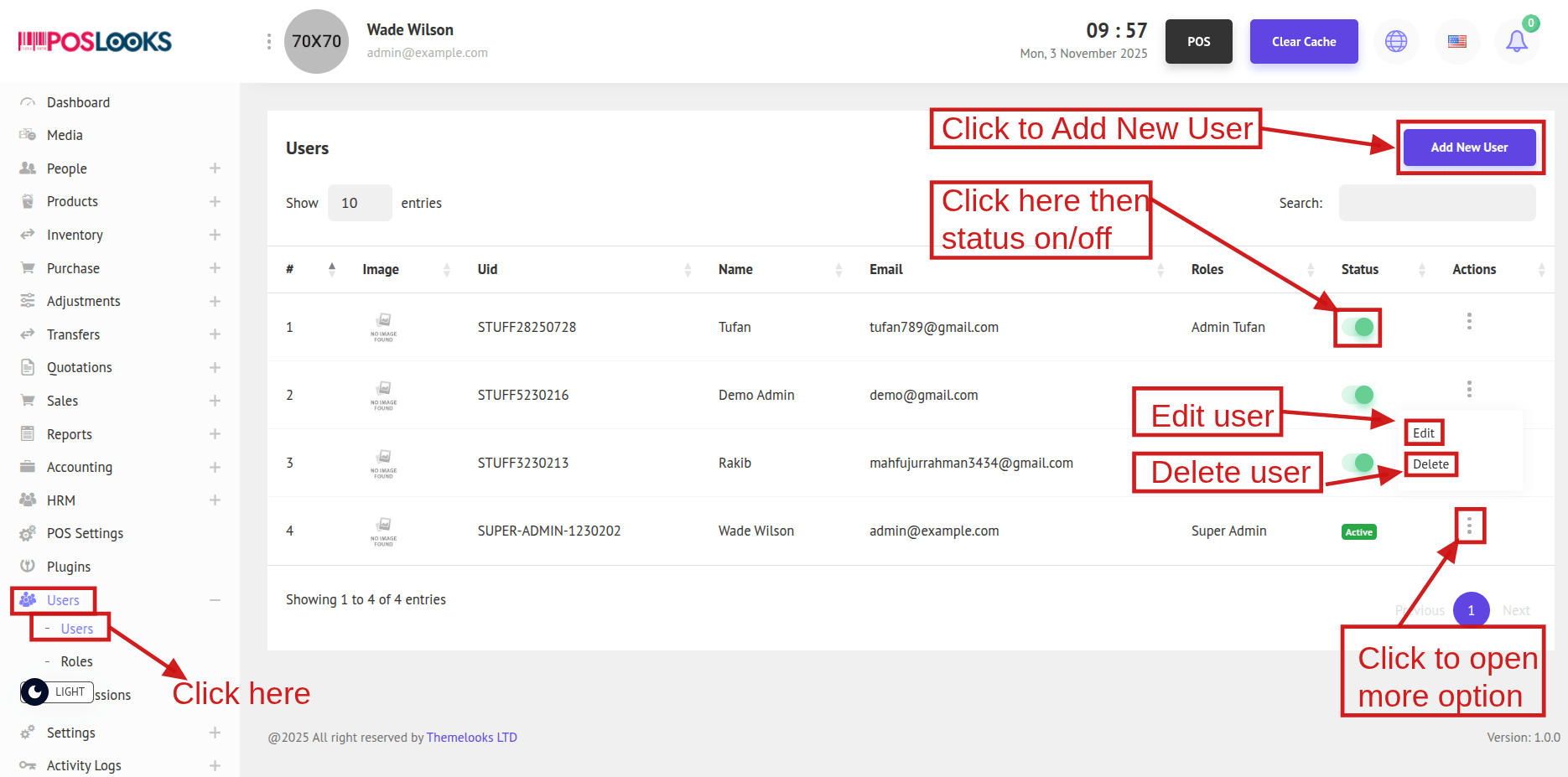
This page displays the Users table for admin-panel management. You can add new users, edit existing ones, or delete users as needed.
To create a user, click Add New User and proceed to the Add User page.
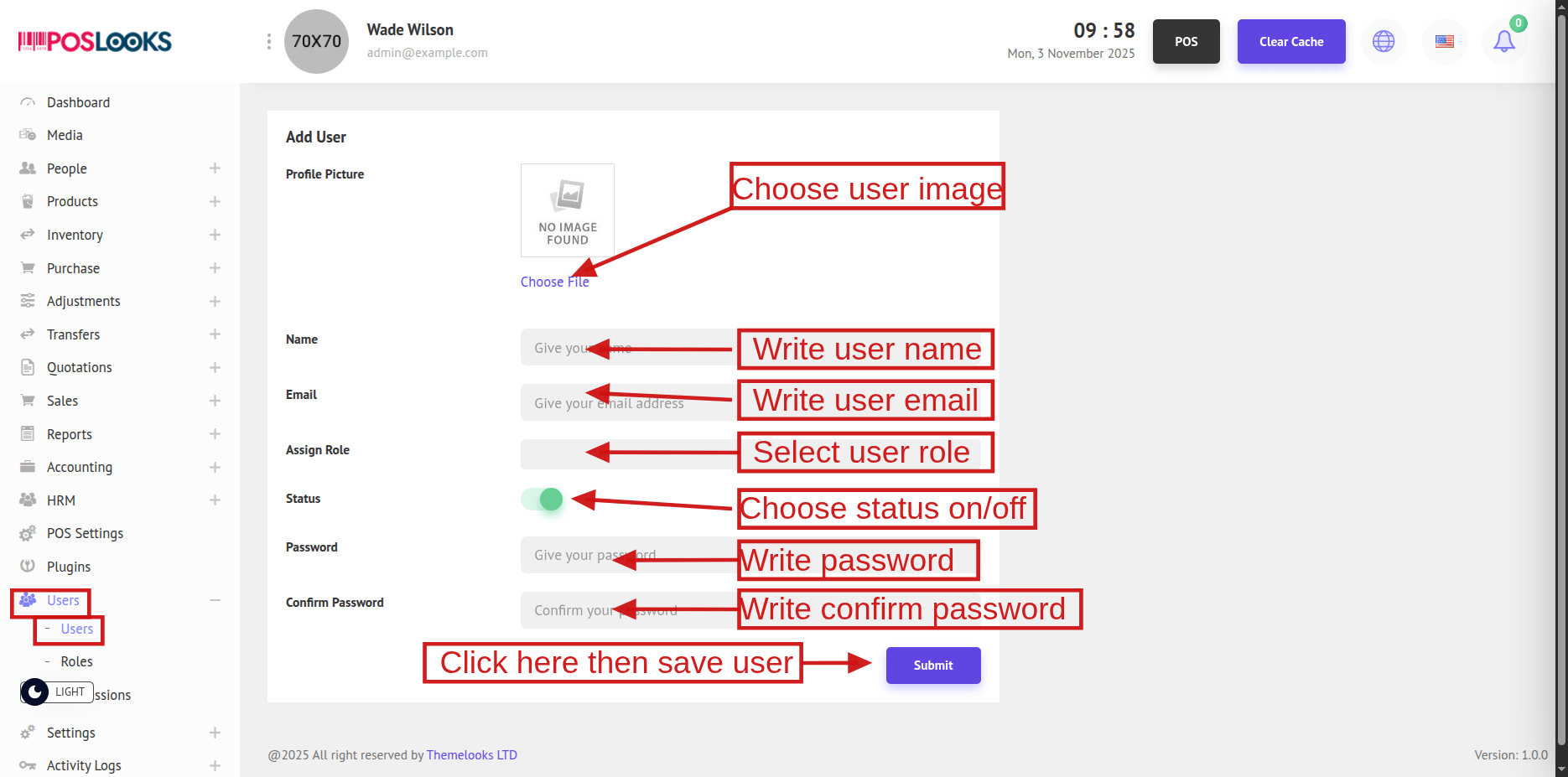
Add a user by setting the image, name, email, status, password, and confirm password, then assign one or more roles under Assign Role (roles control permissions). Click Submit to save.
To modify an existing user, click Edit to open the edit page; to remove a user, click Delete.
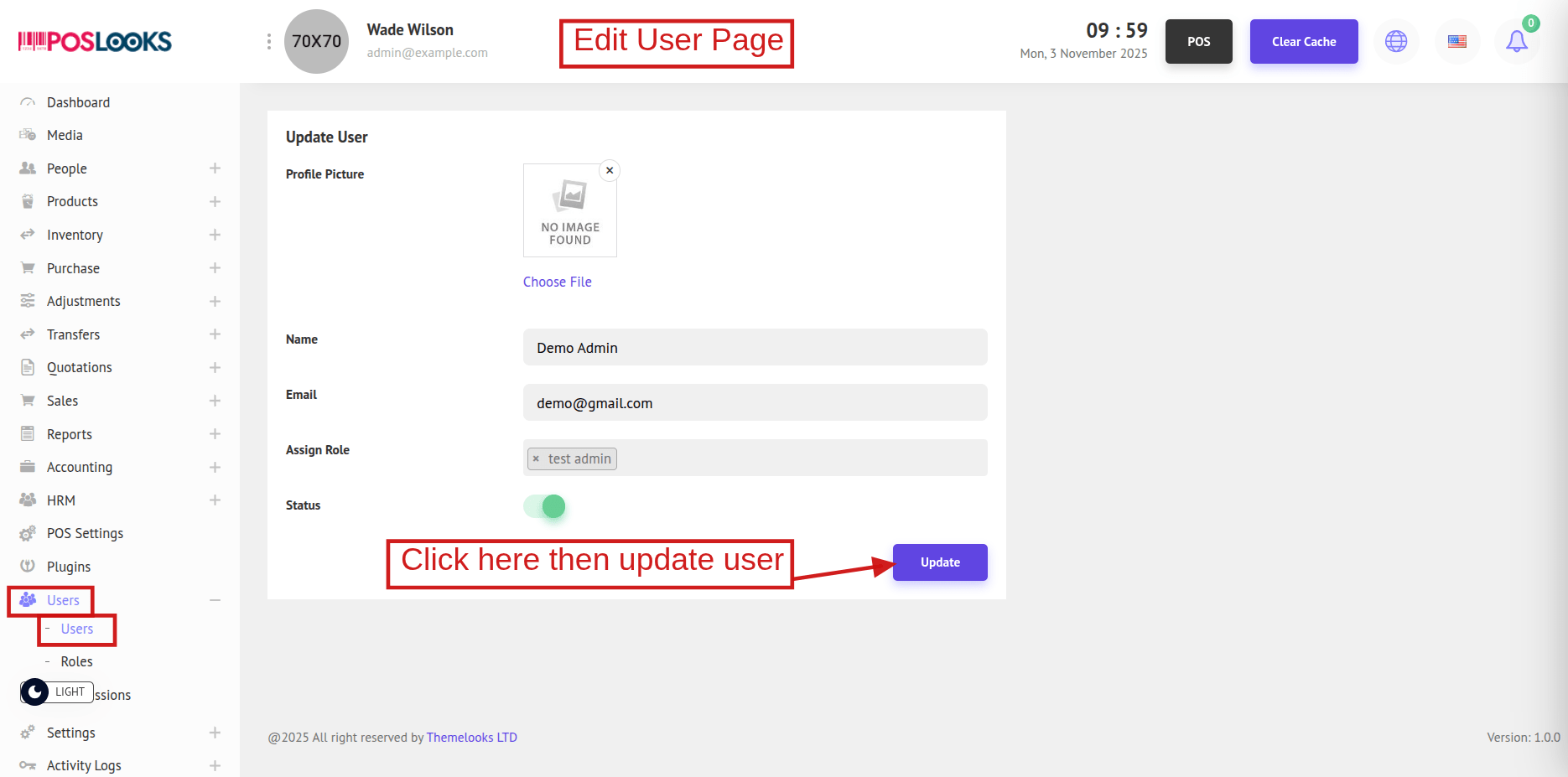
Here you can update user information and click Update to save.
Roles And Permissions:
Our system has various sections. So it is important to use each section carefully. That's where our Roles and Permissions come. There are permissions in every section. So a user must have permission to use sections.
***Permissions are assigned to Roles. And Roles assign to the User. A user can have multiple roles and a role can be assigned to multiple users. Also, a role can have multiple permissions, and permission can be assigned to multiple roles.
In our system, we assign permissions to a role and then assign that role to a user. This way, the user gets all the available permissions from that role and can access the sections of the system that correspond to the permissions they have.
2. Let's see all the system permissions. Follow Users > Permissions.
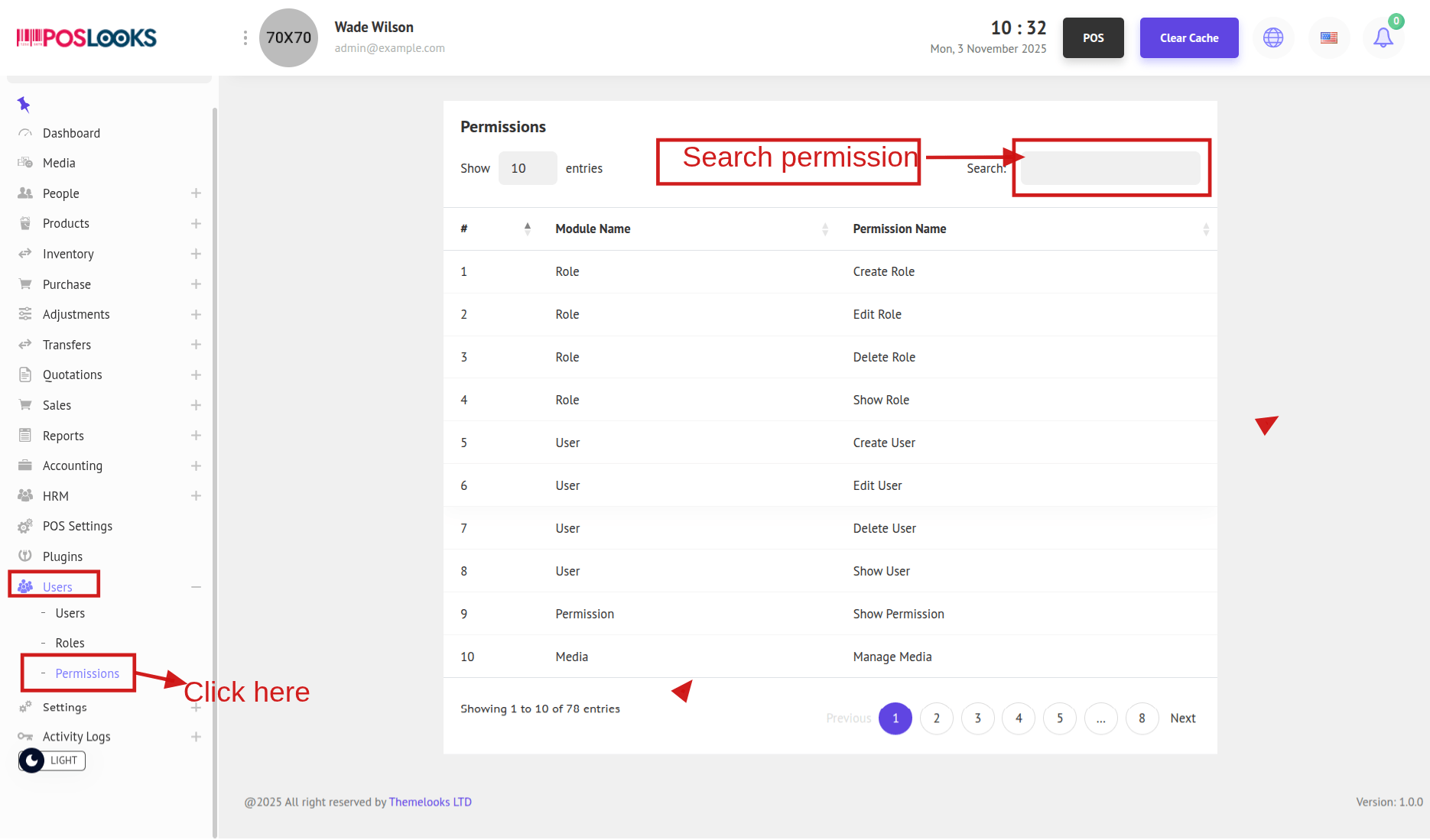
Here all the system permissions are available. For a better understanding, we group the permissions by module. For example, Role Create, Show, Edit, and Delete permissions are under the Role module.
3. Now let's go to the Role page, where we manage roles and assign permissions for each one. Follow Users -> Roles.
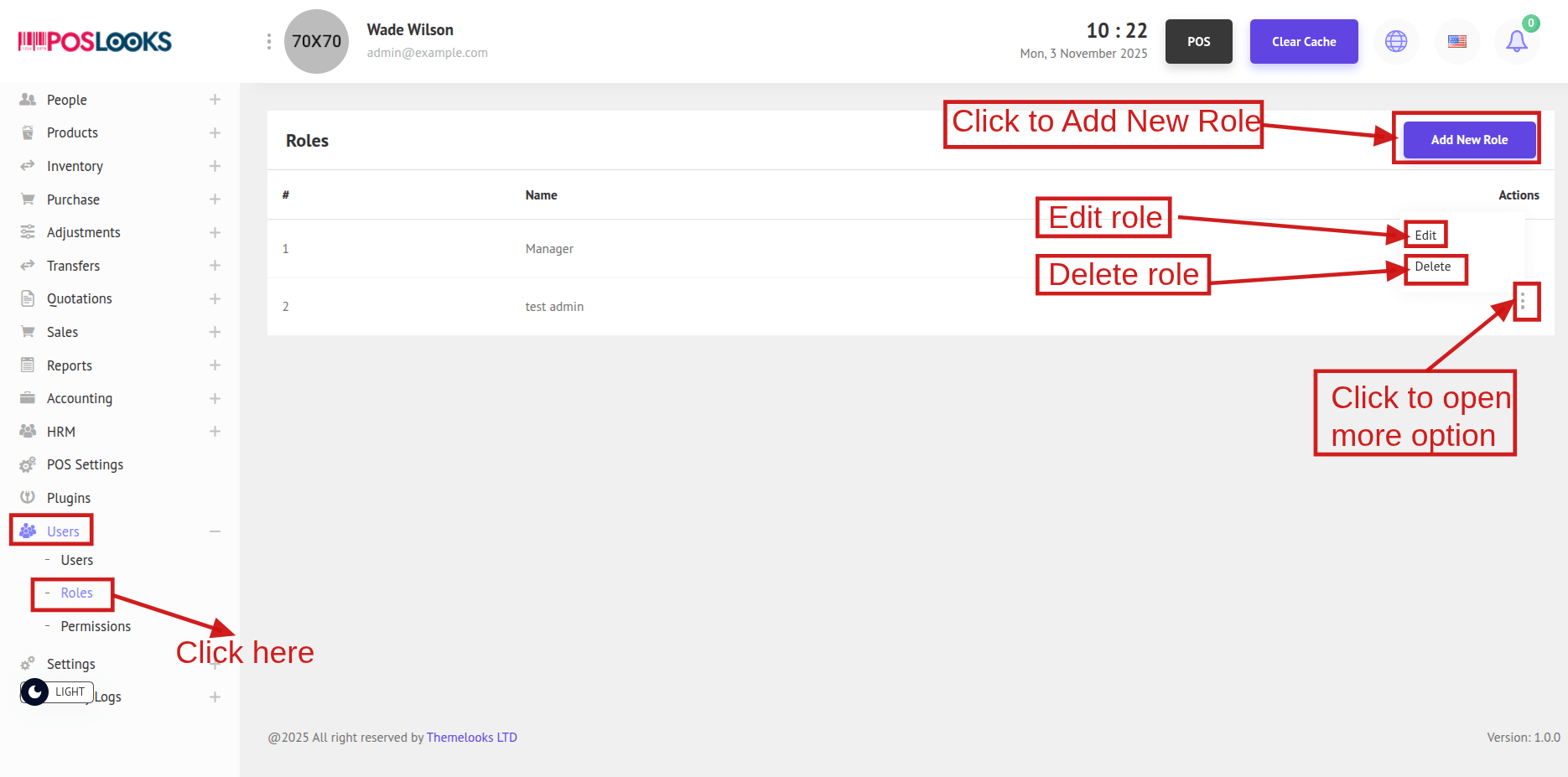
Click Add New Role to open the popup modal and create a new role.
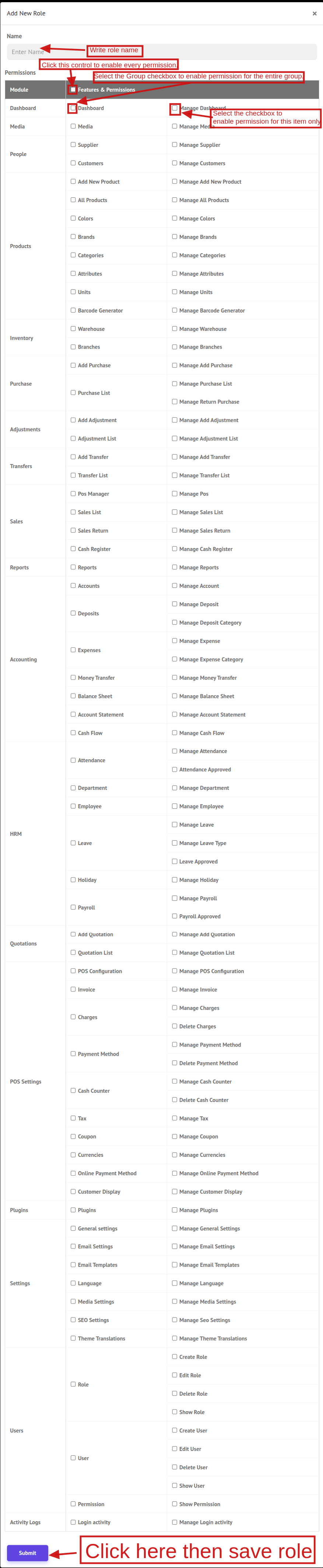
Enter the Role Name, then check the boxes for the permissions you want. Use module for full module access, group for everything inside that group, and item for a single permission. Click Submit to save.
Click Edit to open the role in a popup, make your changes, then click Submit to update. To remove the role, click Delete (confirm if prompted).
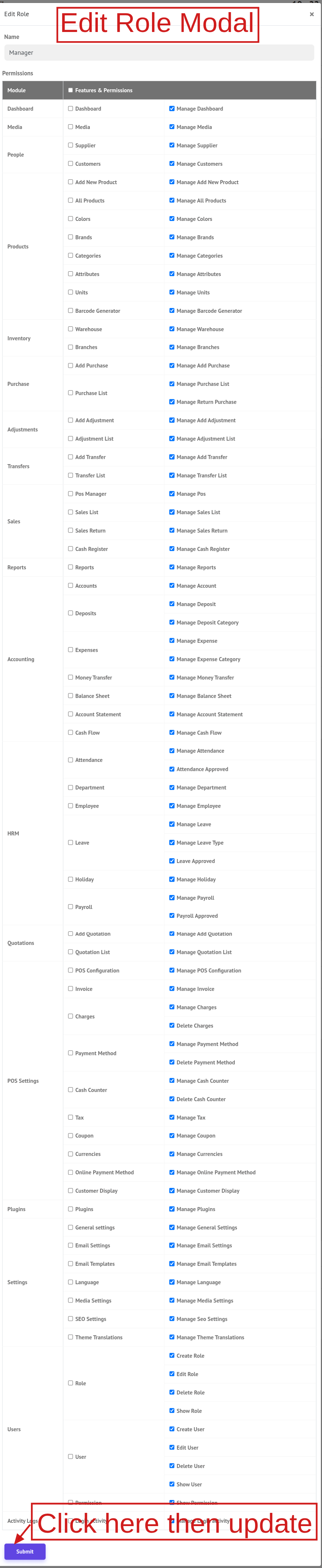
[Note: There is a special type of role "Super Admin", if a user has this role then the user doesn't need any permissions and can access the whole system. The Super Admin role can not be updated or deleted.]
That covers all the Users, Roles, and Permissions.