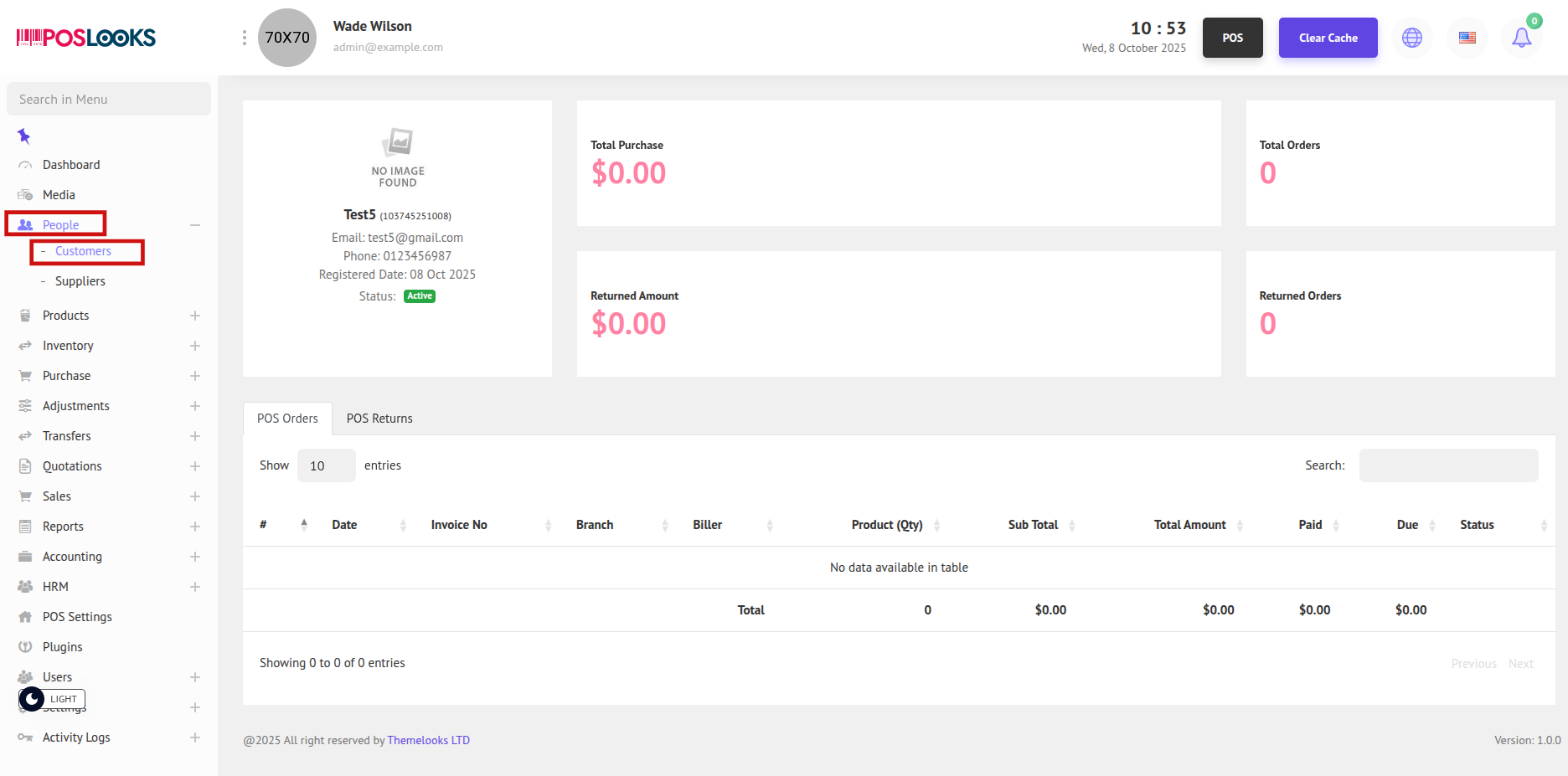
To see the Customer List, go to People > Customers from the menu bar. You will be able to view all customers on the Customer List page.
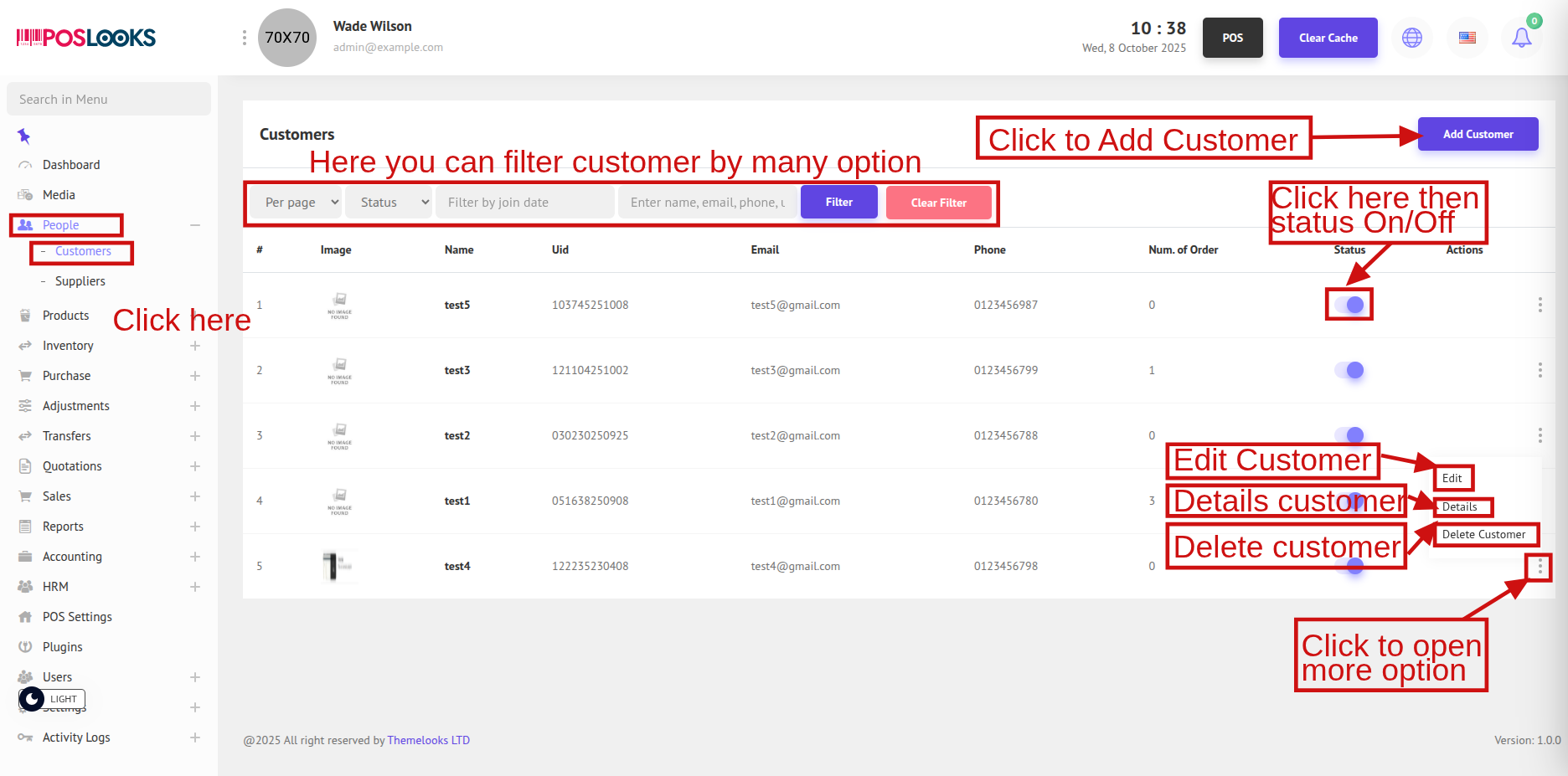
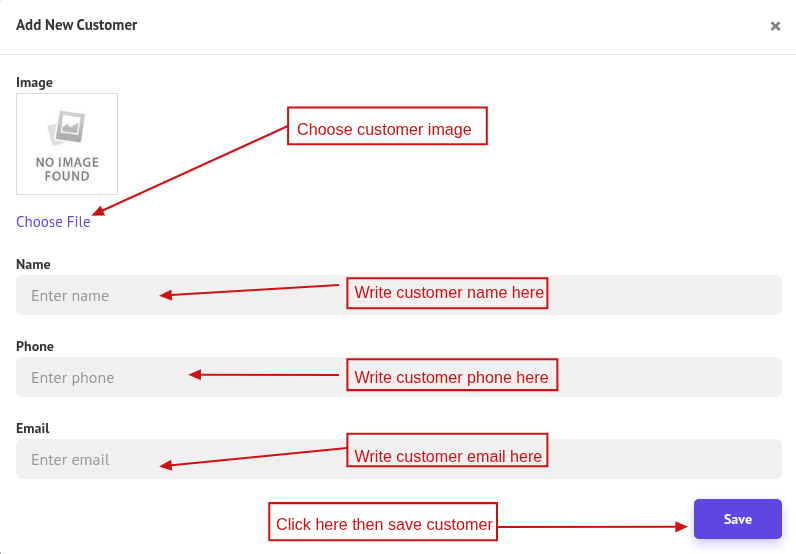
To add a new customer, click Add Customer at the top-right side of the page. A popup modal will appear where you can enter the customer information. After filling in the details, click the Save button.
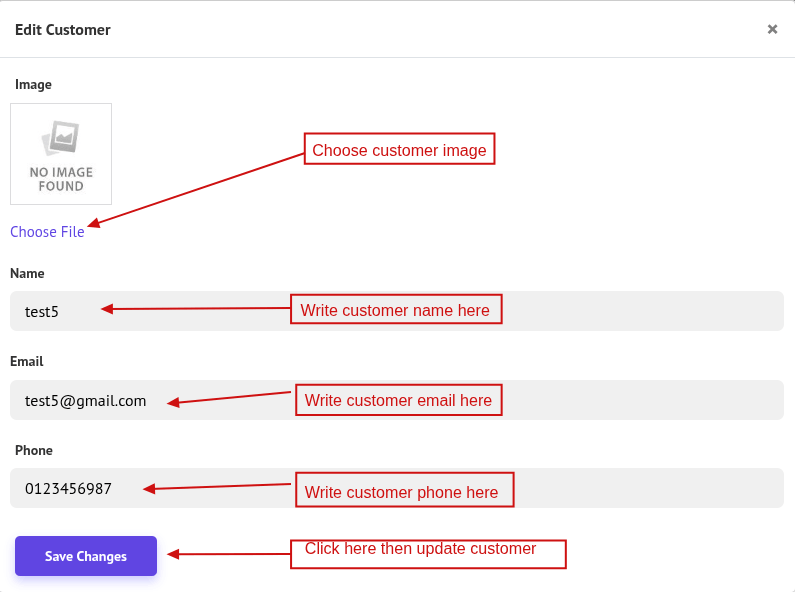
To edit customer information, click the Edit button. A popup modal will appear where you can update the customer details. After making the changes, click Save Changes. You can also delete a customer by clicking Delete Customer.
To view customer details, click the Details button. You will be redirected to the Customer Details page, where you can see the total number of orders, total purchase amount, and total returns made by the customer.