Navigate to POS Settings, When the POS Settings page loads, click the Tax tab from the tab bar. The system will open the Tax page, showing all tax entries.
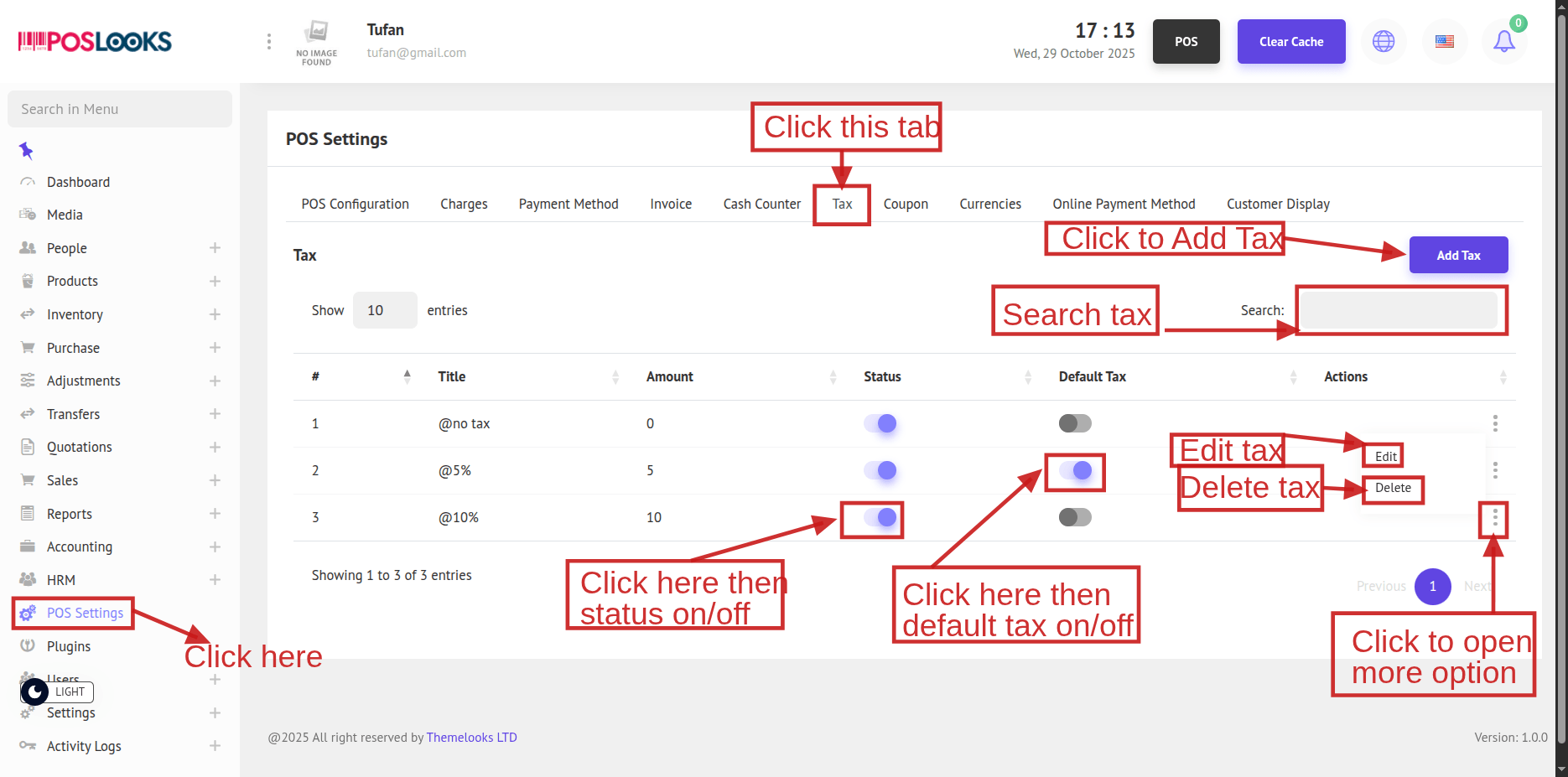
Click the Status toggle to turn a tax On or Off. If a tax is set as Default (On), you can’t change its Status until you first turn Default Off. A tax must be Status = On to be set as Default Tax. When you switch Default from Off to On for any tax (while its Status is On), that tax becomes the new default and any previously default tax is automatically set to Default = Off.
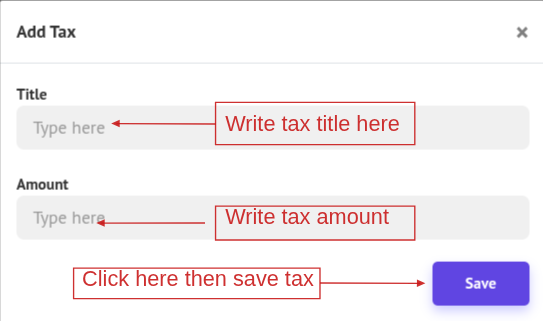
To create a new tax, click Add Tax. A popup window will open—complete the required fields and click Save to create the tax.
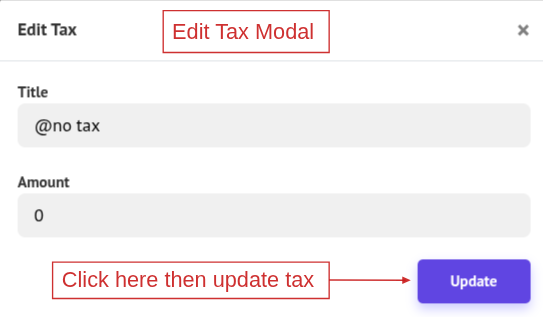
To update a tax, click Edit, make the necessary changes in the popup, then click Update to save.
To remove a tax, click Delete (confirm if prompted).
Note: A tax set as Default (On) cannot be deleted. Turn Default Off first if you need to delete it.